
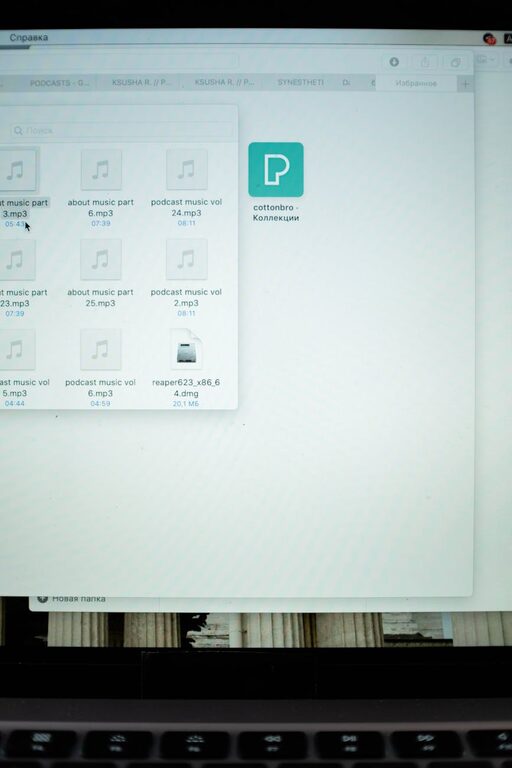
Keeping your computer files organized not only saves time but also reduces stress and improves productivity. Whether you’re working from home, managing personal projects, or maintaining work documents, a clear file structure helps you find what you need quickly and keeps your digital workspace tidy. In this post, we’ll share practical and easy-to-follow tips to organize files on your computer effectively.
Why Organizing Files Matters
Over time, files tend to pile up in random folders or on your desktop, making it difficult to locate important documents. When files are scattered, you risk losing critical data, duplicating work, or wasting time searching for what you need. Organizing your files means creating a system that’s intuitive, consistent, and easy to maintain.
Step 1: Plan Your Folder Structure
Before diving into moving files around, take a moment to plan a folder structure that makes sense for your needs.
Consider Your Main Categories
Identify broad categories that reflect how you use your computer. Examples might include:
– Work
– Personal
– Photos
– Projects
– Finances
– School
Use Subfolders for More Detail
Within each main category, create subfolders to separate files by topic, date, or project. For example, under “Work,” you could have folders for “Reports,” “Presentations,” and “Meeting Notes.”
Aim for Simplicity
Avoid overly complicated folder trees. A deep hierarchy can be hard to navigate. Two to three levels of folders typically work best.
Step 2: Use Clear and Consistent Naming Conventions
File names can make or break your organization system. When naming files, be clear and consistent.
Tips for Naming Files
– Use descriptive names that indicate the content (e.g., “2024_Tax_Return.pdf” instead of just “Document1”).
– Include dates in a standard format like YYYY-MM-DD to sort files chronologically.
– Avoid spaces and special characters; use underscores or hyphens if needed.
– Keep names concise but informative.
Having a consistent naming scheme helps when searching for files later.
Step 3: Declutter and Delete Unnecessary Files
Before organizing, get rid of files you no longer need.
How to Identify Files to Delete
– Duplicate files or outdated versions.
– Temporary files or downloads you no longer require.
– Junk files like old installers or logs.
Consider using tools like the built-in Disk Cleanup on Windows or Storage Management on Mac to find large or unused files.
Step 4: Sort and Move Files Into Your Folders
Now it’s time to start moving your files into the new folder structure.
Tips for Efficient Sorting
– Work in batches: Sort files by category or date to stay focused.
– Drag and drop files using your computer’s file explorer.
– Use the search function to locate specific files for quick sorting.
Try not to leave any files on your desktop—it’s best to keep it clean.
Step 5: Use Tags and Metadata (Optional)
Some operating systems allow you to tag files or add metadata, which can make search and grouping even easier.
How Tags Help
– Assign multiple tags to files that relate to different projects.
– Use color-coded tags to highlight priorities or file status.
– Search by tags to quickly find related documents.
This feature can add flexibility beyond folder structures.
Step 6: Back Up Your Organized Files Regularly
An organized file system is only useful if your files are safe.
Backup Options
– Use an external hard drive for manual backups.
– Utilize cloud storage services like Google Drive, Dropbox, or OneDrive.
– Set up automatic backups to avoid forgetting.
Regular backups protect your data from accidental loss or hardware failure.
Step 7: Maintain Your System
File organization isn’t a one-time task. Schedule a weekly or monthly review to:
– Delete unnecessary files.
– Move new files into the correct folders.
– Rename or reclassify files as needed.
Consistency is key to keeping your digital space manageable.
Additional Tips for Specific File Types
Photos and Videos
– Organize by event or date to create meaningful albums.
– Use photo management apps with tagging features.
Work Documents
– Keep project files grouped together.
– Archive completed projects to separate folders.
Downloads Folder
Keep this folder empty or organized by moving files out regularly.
—
Final Thoughts
A well-organized file system saves time and reduces frustration. By taking the time to plan, name files clearly, declutter, and maintain your structure, you’ll enjoy a more efficient and enjoyable computing experience. Start small, be consistent, and you’ll notice the difference!
Feel free to share your own file organization tips in the comments below!